| phone: | +420 549 49 1984 |
|---|---|
| e‑mail: |
|
Printing, copying, and scanning are available in the library
- self-service printing, copying, and scanning
- you need MU chip card (ISIC, ITIC, other card issued by MU)
- activated SUPO account and then send money via credit card or QR payment (at least 50 CZK is required for activation)
- printing and copying are paid cashless, payments are charged to the SUPO account, scanning is free of charge
- there are 4 multifunction copiers in the library, one of them uses recycled paper
- the copiers are located in Information desk, Green study room have two copiers (1 with recycled paper), and Computer study room
- sending files to print form library's computers
- for scanning two book scanners are available too (in Blue and PC study rooms) where you download your scans directely into the flash disc (available for rent at the Circulation Desk)

Prices
|
A4 |
1 page |
2–sided page |
||||
|
BW |
BW–PAPER RECYCLED |
COLOUR |
BW |
BW–PAPER RECYCLED |
COLOUR |
|
|
Photocopying |
1,60 CZK |
1,90 CZK |
8,10 CZK |
3,00 CZK |
4,20 CZK |
16,00 CZK |
|
Printing |
1,50 CZK |
1,80 CZK |
8,00 CZK |
2,80 CZK |
3,50 CZK |
15,80 CZK |
|
Scanning |
Free of charge |
|||||
SUPO
- SUPO = The System of Settlement of Individuals' Claims at Masaryk University, detailed information on SUPO is available on INET MU a IT MUNI
- each client has his/her SUPO client account
- this account has to be activated by the client by confirming the Client's Consent with the Running Conditions of the SUPO System
- payments on active SUPO account can be made both in cash and cashless form
- all reprographic services at the Faculty of Social Studies are paid cashless, payments are charged to the SUPO account
Printing




Tutorial
1
It is possible to send files to print from the library's computers.
2
Pricelist. We use only paper format A4.
B/W 1 page
1,50 CZK
B/W 1 page, rec. paper
1,80 CZK
COLOUR 1 page
8,00 CZK
B/W 2-sided
2,80 CZK
B/W 2-sided, rec. paper
3,50 CZK
COLOUR 2-sided
15,80 CZK
3
Change the language to English.
4
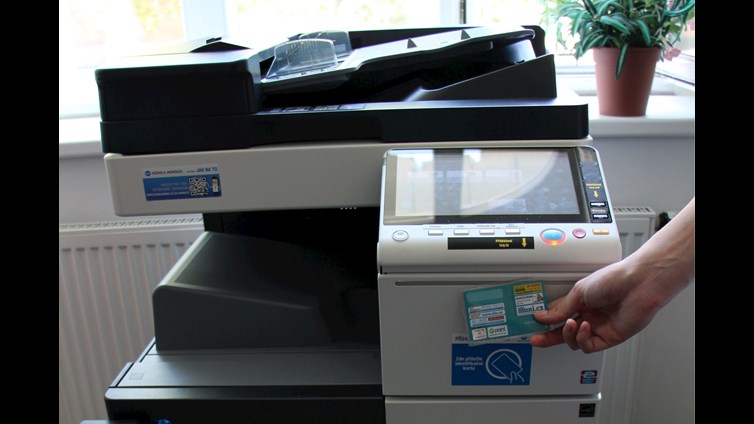
Log in to the printer with your ISIC.
4a
Did you forget your card? Never mind, you can generate a temporary PIN for login to the printer.
5
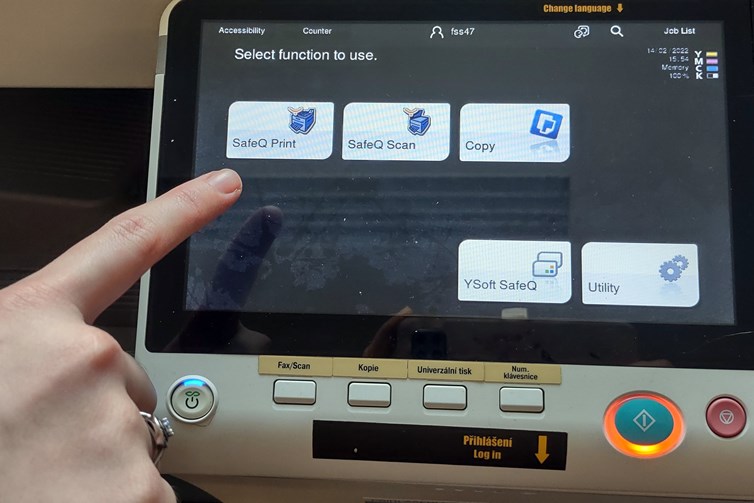
Choose the option SafeQ Print.
6
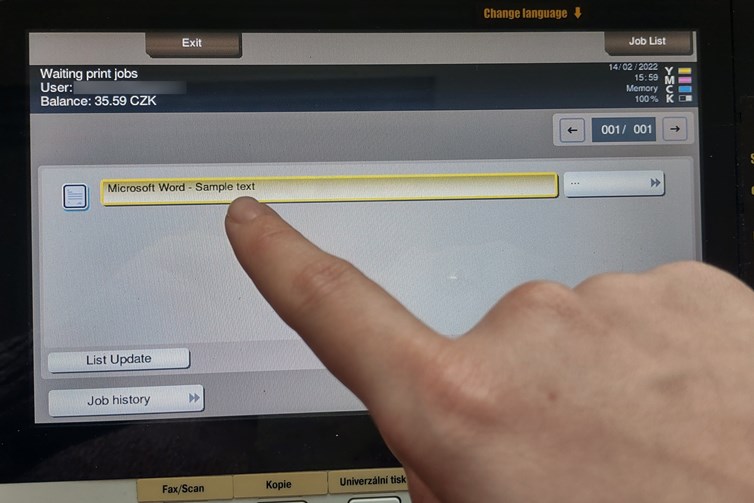
Press Waiting to see the files sent to print.
7
Select the file/files you wish to print out now.
8
Press the blue button to start printing.
9
When you finish, do not forget to log out.
Photocopying




Tutorial
1
Log in to the copier with your ISIC.
1a
Did you forget your card? Never mind, you can generate a temporary PIN for login to the copier.
2
Change the language to English.
3
Pricelist. We use only paper format A4.
B/W 1 page
1,60 CZK
B/W 1 page, rec. paper
1,90 CZK
COLOUR 1 page
8,10 CZK
B/W 2-sided
3,00 CZK
B/W 2-sided, rec. paper
4,20 CZK
COLOuR 2-sided
16,00 CZK
4
Choose Copy.
5
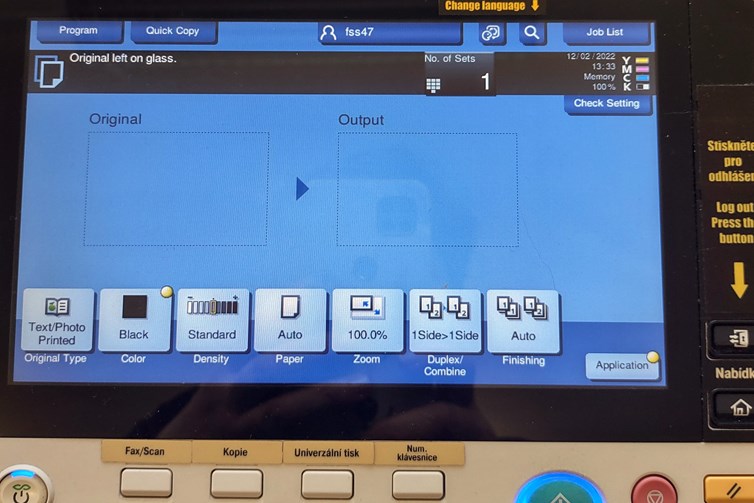
Set the options.
6
The black and white copying is set automatically. It can be changed to colour, but do not forget there is a higher price for colour copying - 8,10 CZK/A4.
7
Paper format – only A4 is available. You can choose between portrait or landscape.
8
Zoom enables to enlarge or reduce the size of a copy. Set the scale ratio by choosing suitable format, or set the percentage ratio.
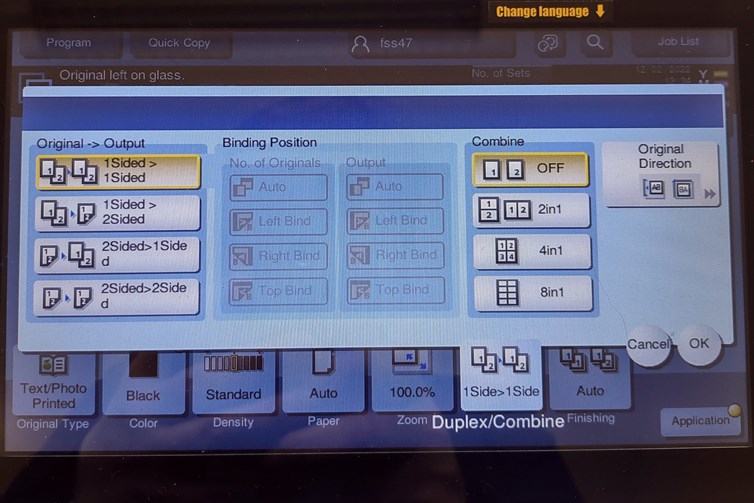
9
For 2-sided copying – press the button Duplex/Combine and select the required option.
10
Start copying by pressing the blue button.
11
When you finish, do not forget to log out.
Scanning


Tutorial
1
Log in to the copier with your ISIC.
1a
Did you forget your card? Never mind, you can generate a temporary PIN for login to the copier.
2
Change the language to English.
3
Pricelist.
Scanning is
FREE OF CHARGE
4
Choose the option SafeQ Scan.
5
Scan to my school e-mail – The scanned document is sent to your e-mail. Only files up to the 15 MB can be sent.
Scan to my profile – The scanned document is automatically saved into your disk K, folder Scan, accessible from the library's computers.
6
Go to Scan settings.
7
From the top menu, choose the parameter you want to set. It is recommended to select the format, resolution, or file type.
8
Automatically the colour scanning is set. However, if you are scanning only text, the Gray Scale might be better option. The size of the file will be smaller.
9
Scan size – choose an appropriate size by a format or set your own size Custom Size.
10
Resolution is set to 200×200 dpi, which is just enough for texts. If you need better scan quality, then set a higher resolution.
11
If you do not prefer PDF files, change it to a different file type.
12
Start scanning by pressing the blue button.
13
After you scan the last page, press the button Finish.
13
DO NOT FORGET TO TRANSMIT THE FILE to your e-mail or your profile by pressing the blue button.